
Picture It allows customers to upload their own images into your store's live previews. If your store offers custom images with or without frames, this feature is perfect for you! Here's how to get started:
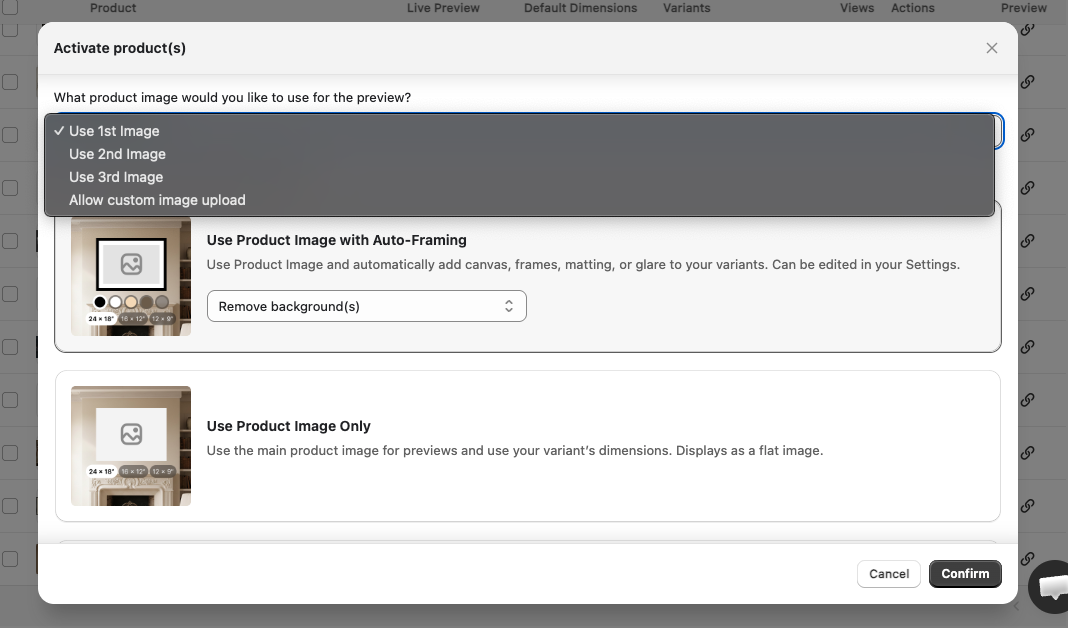
If you're activating a new product, select "Allow custom image upload" under the "What product image would you like to use for the preview?" dropdown:
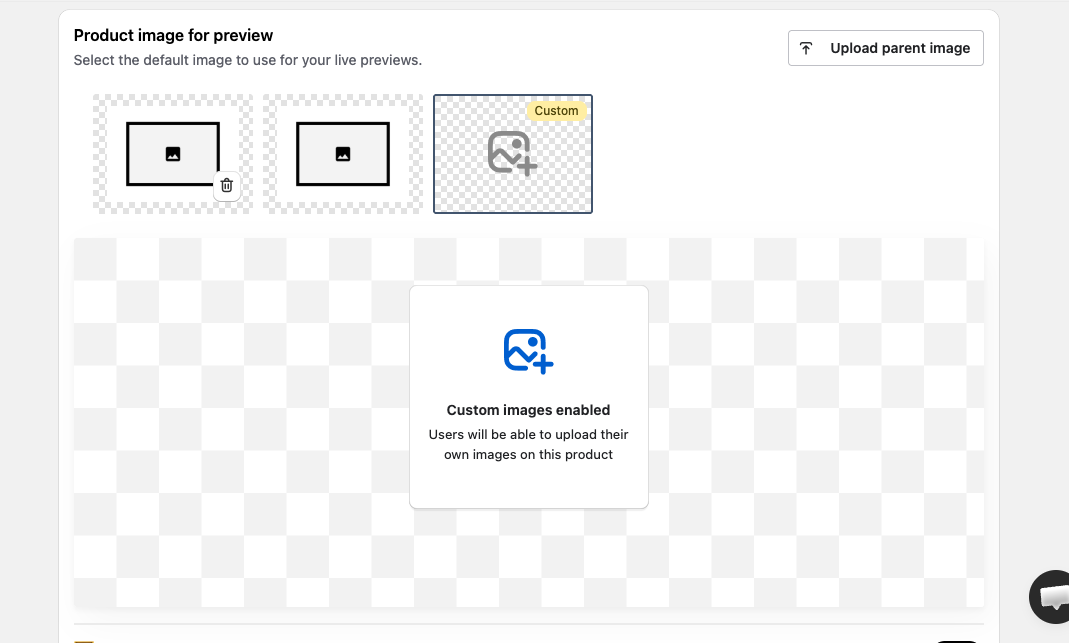
If you want to change a current activated product to this feature, simply go to the last image in your image list/carousel, and select the Custom Image item:
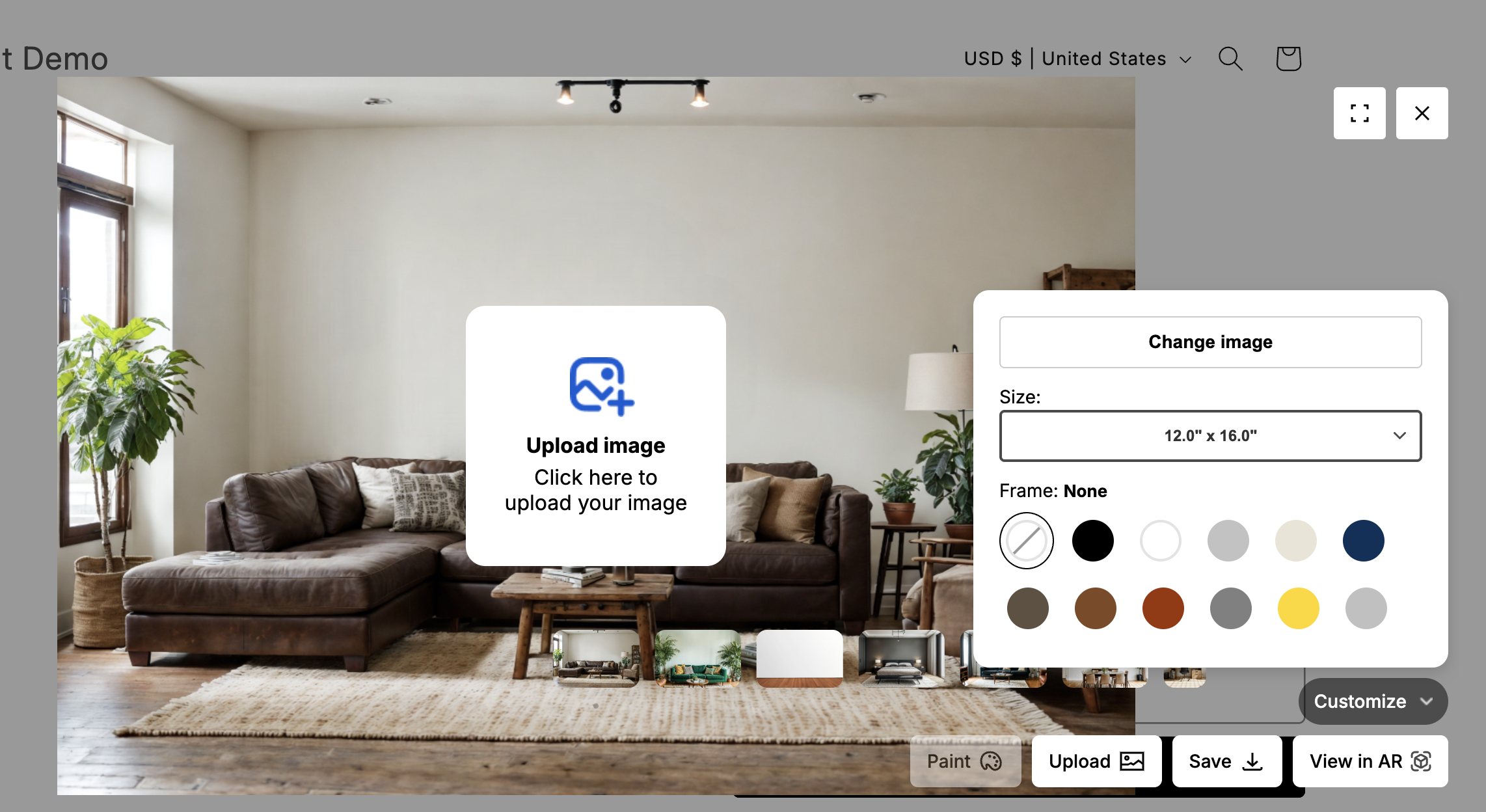
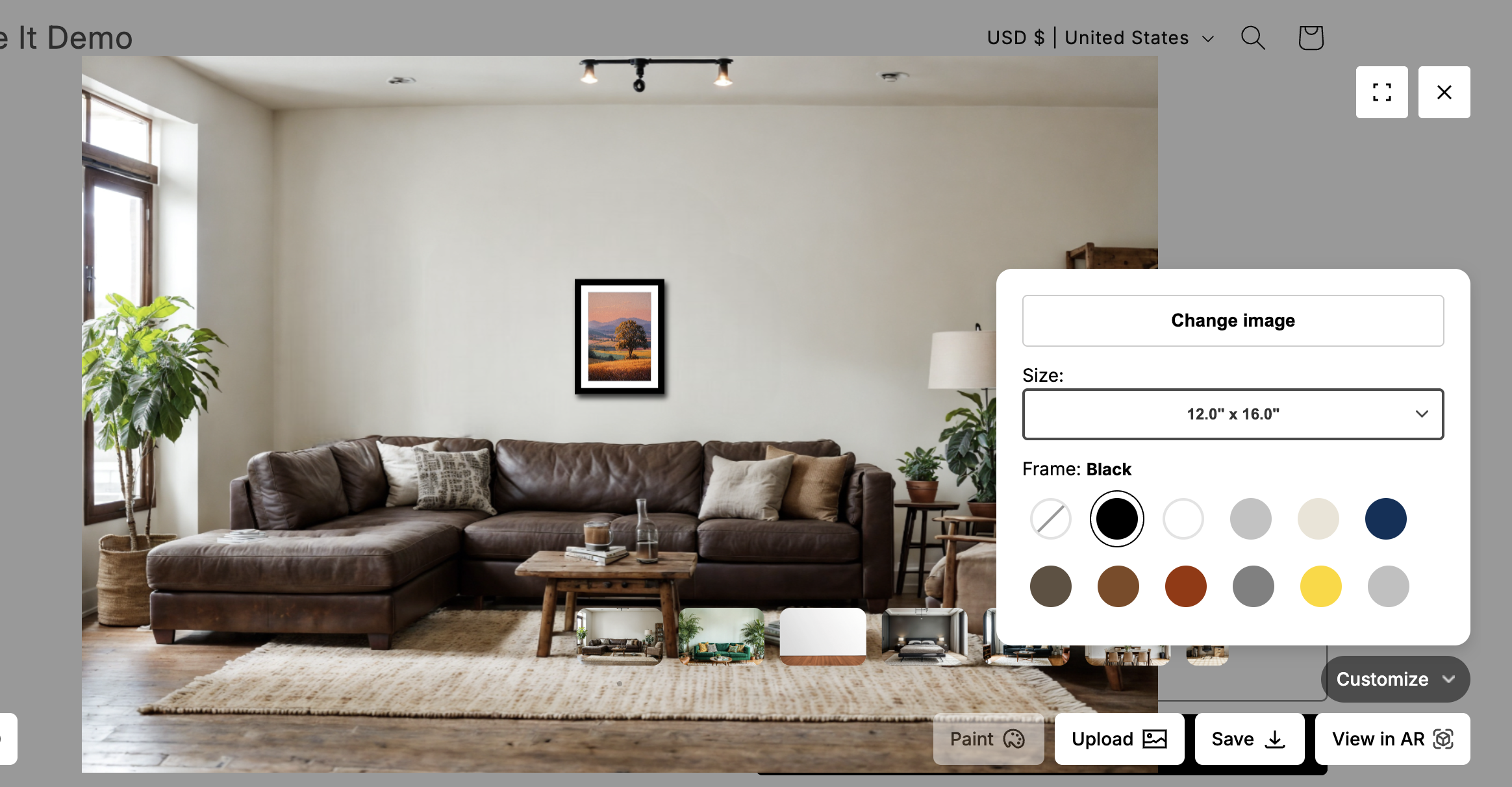
Now that it's set, you can test your product by clicking into the preview and uploading:
Install Picture It for a 14-day free trial, cancel anytime.
