
Getting accurate dimensions on your live previews adds a layer of transparency that creates trust with your online art shoppers. Luckily, with Picture It, you can get them automatically imported along with your products when activating them in the app.
1. Ensure the Product Dimensions Are Formatted Correctly
Within your Shopify admin, make sure your product's dimensions have Width and Height only. Accepted formats include ("X" and "Y" being width or height):
For single artworks (no variants):
NOTE: You can select "dimension format" in the Settings of your Picture It app. This will determine whether your dimensions will be read as "height x width" or "width x height" when you activate your products.

For artwork with variants:

For metafield:
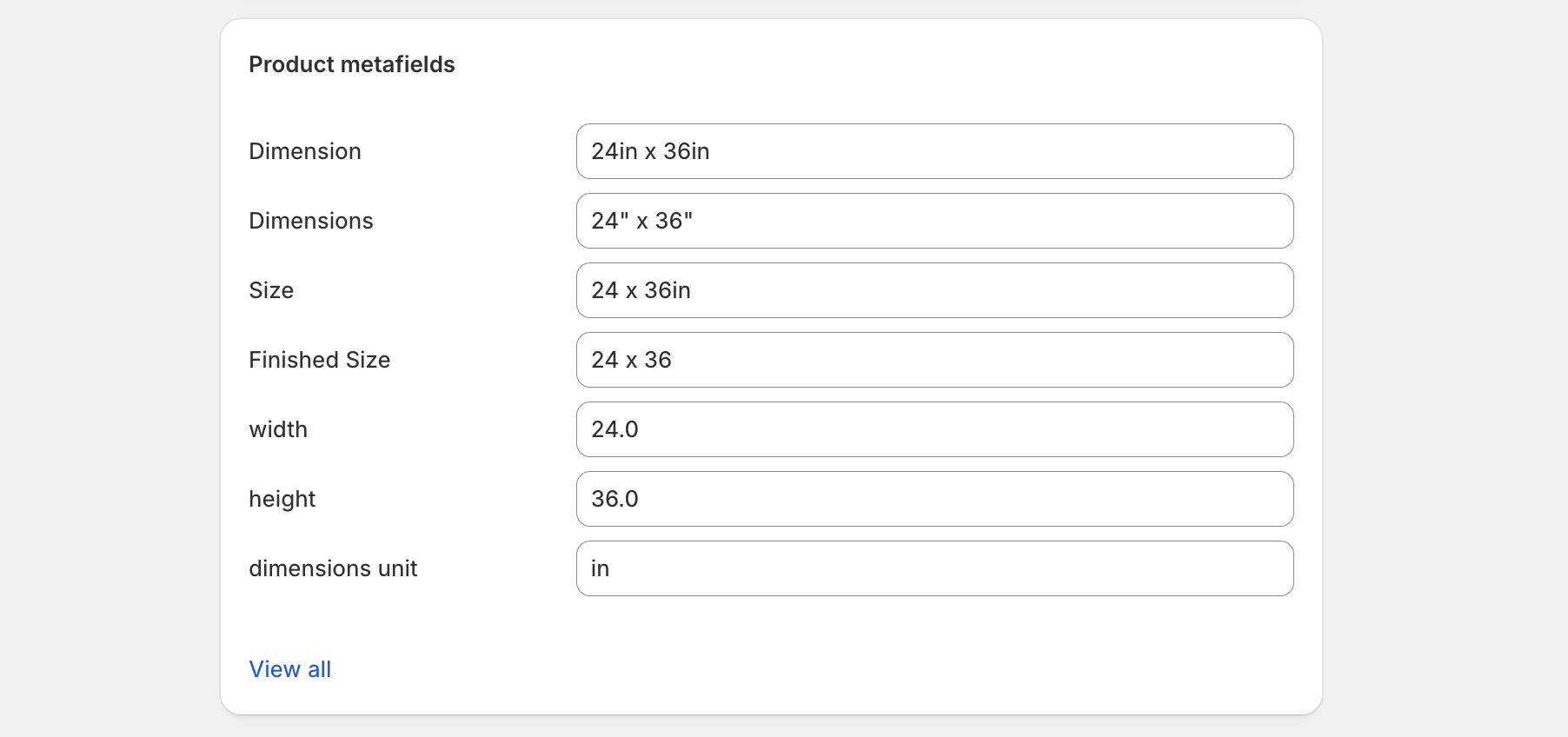
2. Activate Your Products
Within the Picture It app, navigate to your "My Products" page. You'll see for single products, the dimensions that were detected under the product description will show up under "default dimensions". Products with variants will show the amount of variants under that product. You will be able to see how dimensions for those are detected in the next step.
Go ahead and activate the products to get the live previews set up. You will be redirected to the product's detail page once that's done.
NOTE: If you have both landscape and portrait products, make sure you activate the products that match the "dimension format" you have in your Settings. Then when you activate the products with the other orientation, you will need to change the dimension format to match those.

3. Product Details and Dimension Editing
Once you're in the product detail page, you can scroll down and edit the dimensions if you wish.
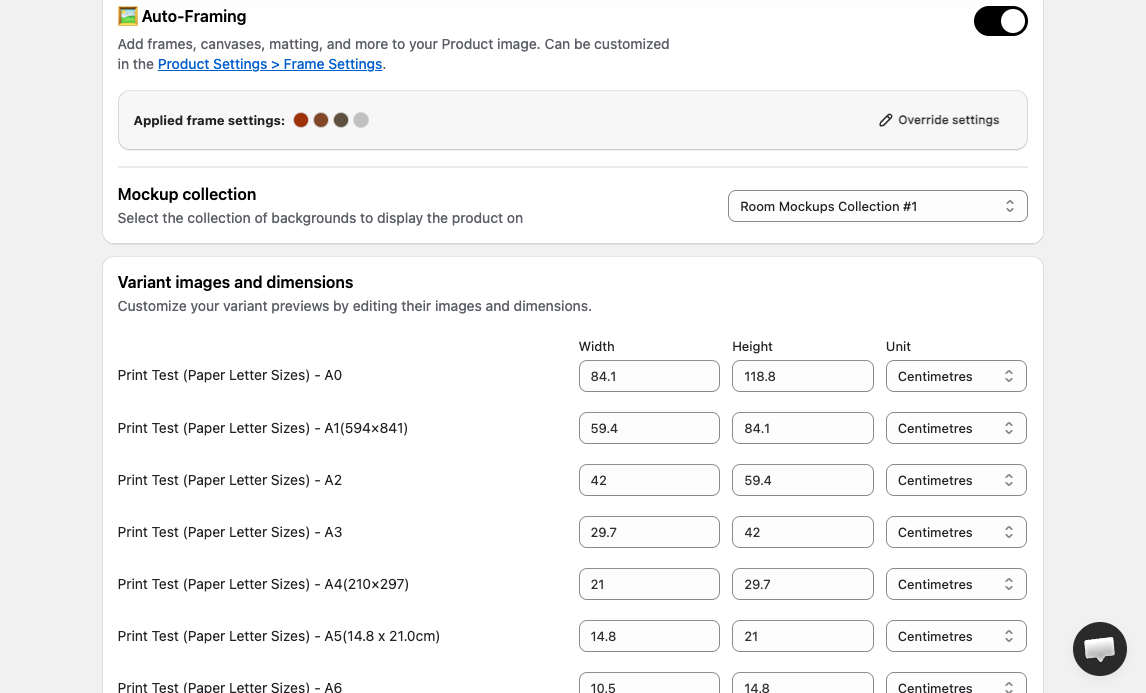
Now you have dimensions set up with your live previews! If you have any questions, reach out to help@pictureit.co.
Install Picture It for a 14-day free trial, cancel anytime.
